
Guide
Get started
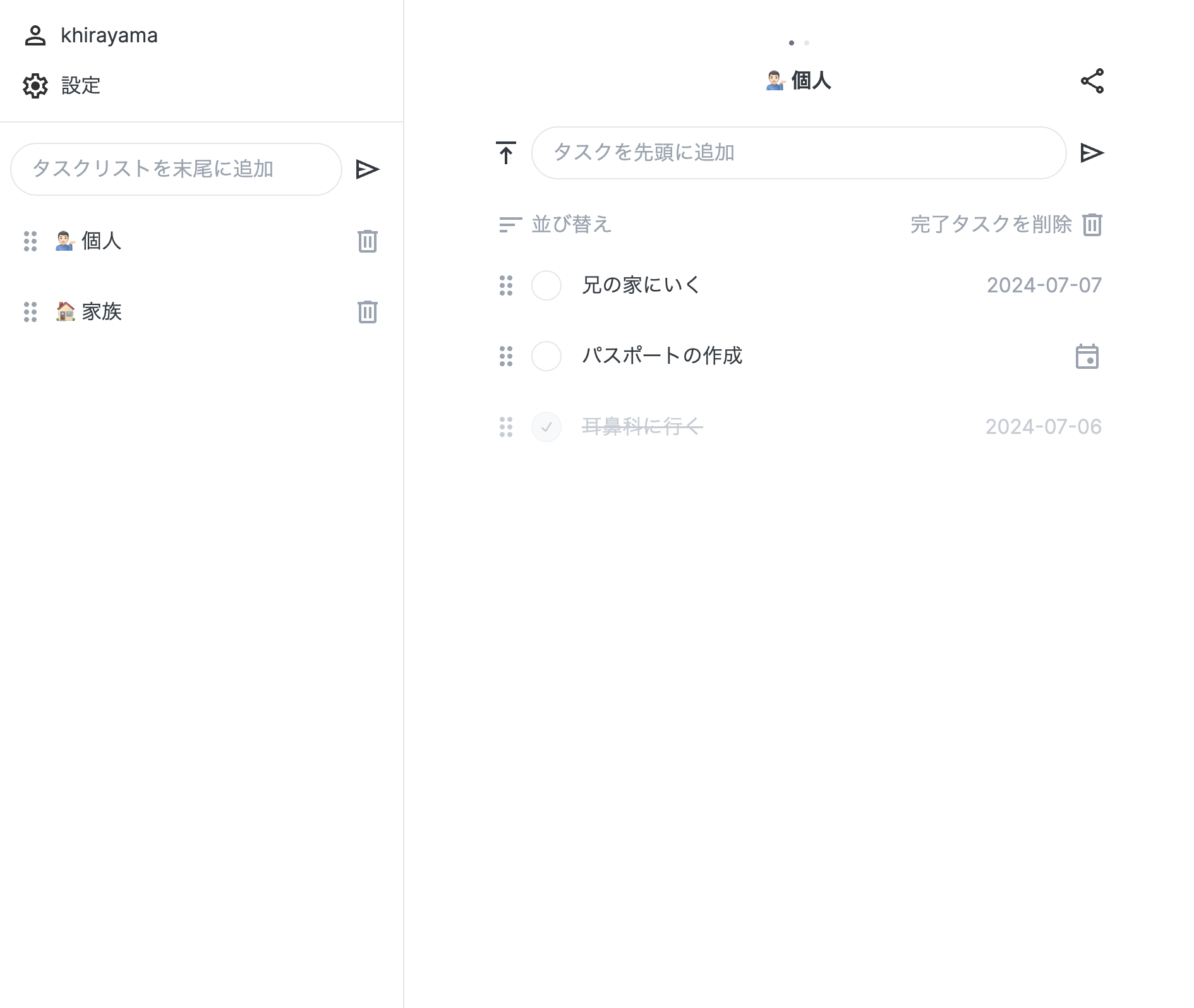
Sign up with your email and create a task list. Enter a task to add it, then check it off when done.
Dates and calendar
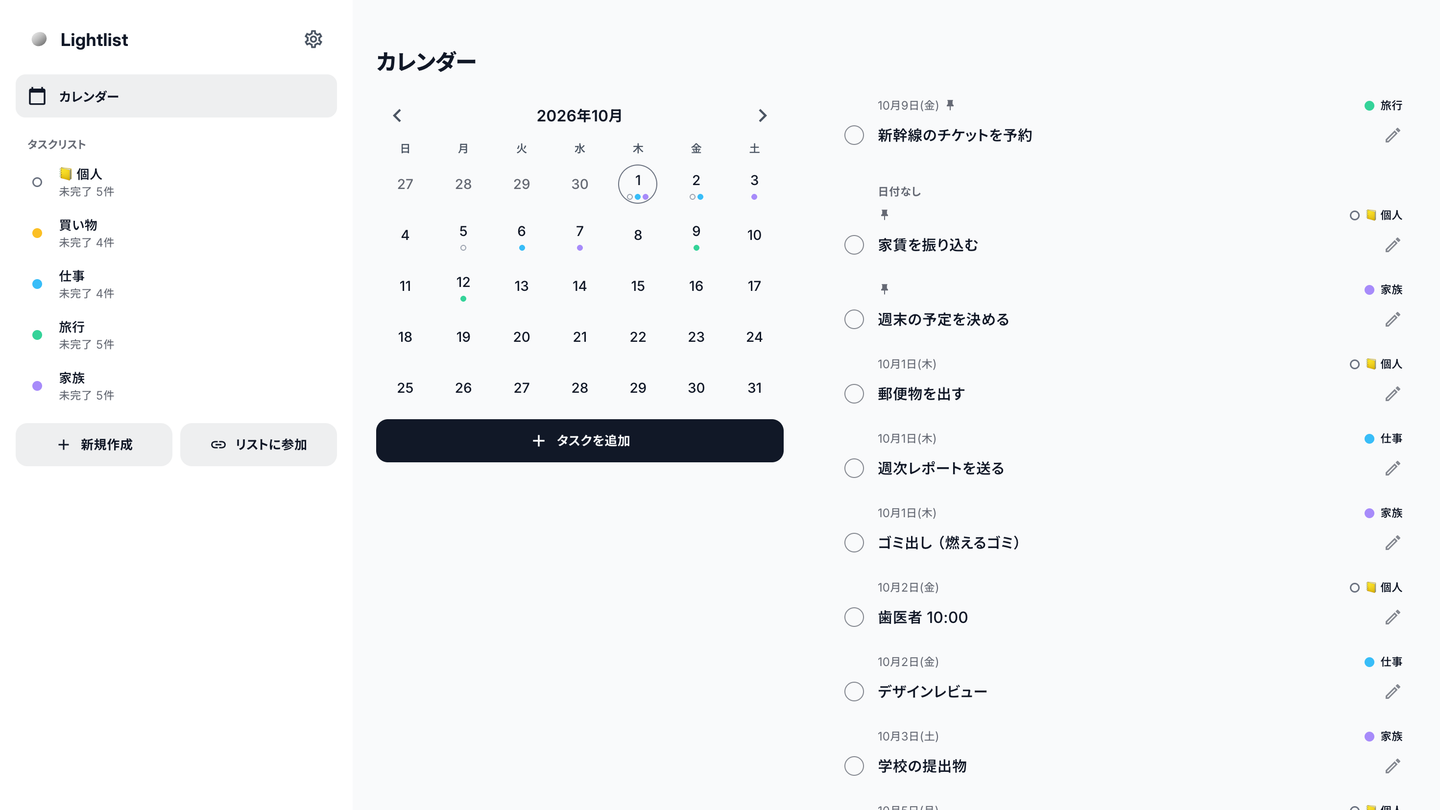
Type “tomorrow Buy milk” or “12/24 Gifts” to set a date. The calendar shows dated tasks from all your lists.
Examples
-
tomorrow Buy milk -
12/24 Gifts -
pin tomorrow Make a reservation -
tomorrow pin Make a reservation
Put the date and pin at the beginning in either order. You can also use either one on its own.
Accessibility
Use a screen reader, keyboard, or larger text. Reorder tasks with a keyboard or screen reader, and respect reduced motion settings.
Connect AI tools (MCP)
Use Muse, Claude Code, Codex, and other tools to view lists and add, update, complete, or reorder tasks.
-
Create a token
Open Settings → Account → API tokens and create a token. It is shown only once, so copy it before closing.
-
Configure your AI tool
Open your tool below and replace ll_... with your token. You can also copy ready-to-use examples from the token creation screen. If you already have a configuration, add the lightlist entry to it.
Muse
Add a custom connector in Muse’s connector settings and configure the endpoint and Authorization header as shown below. Replace ll_... with your API token.
https://lightlist.app/mcp
Authorization: Bearer ll_...
Claude Code
claude mcp add --transport http lightlist https://lightlist.app/mcp --header "Authorization: Bearer ll_..."Codex
~/.codex/config.toml[mcp_servers.lightlist] url = "https://lightlist.app/mcp" http_headers = { "Authorization" = "Bearer ll_..." }Cursor
~/.cursor/mcp.json{ "mcpServers": { "lightlist": { "url": "https://lightlist.app/mcp", "headers": { "Authorization": "Bearer ll_..." } } } }VS Code
MCP: Open User Configuration{ "servers": { "lightlist": { "type": "http", "url": "https://lightlist.app/mcp", "headers": { "Authorization": "Bearer ll_..." } } } }Gemini CLI
gemini mcp add --scope user --transport http --header "Authorization: Bearer ll_..." lightlist https://lightlist.app/mcp -
Ask your AI
After setup, enable the Lightlist connection in your AI tool and try these requests.
Show me my Lightlist task lists
Add milk to my shopping list for tomorrow
Access
A token can read and write every list you have joined and does not expire. Creating lists and changing sharing settings are not supported. Your MCP client must support Bearer authentication. OAuth-only connections are not supported.
Disconnect
Delete the token from API tokens in Settings to stop access with that token.
Connection issues
Check that the URL is https://lightlist.app/mcp and the Authorization header contains your token. A 401 response means the token is invalid. After creating a replacement token, update your AI tool configuration.